Using Breakouts
You can use the Breakout functionality to see more detailed information about the dimension of a record or measure characteristic.
Note: Breakouts can be used against any field/attribute, not just those included in the rules of the selected Dimension.
When an attribute is selected for breakout on a specific Dimension, percentages will be calculated for the records that are in a True state for the related rules of the Dimension.
Percentages are calculated for each breakout group in the following ways:
- Without a filter.a ÷ (b × 100)
where:
- a
- Is the number of records in the group in a true state for the specified Dimension.
- b
- Is the number of all records in the group for the specified Dimension.
- With a filter. c ÷ (d × 100)
where:
- c
- Is the number of filtered records in the group in a true state for the specified Dimension.
- d
- Is the number of all filtered records in the group for the specified Dimension.
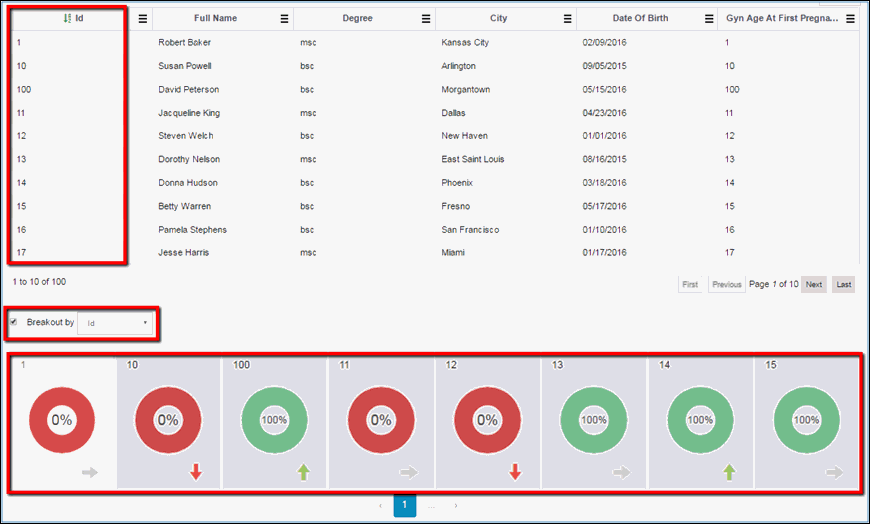
Breakouts divide records by a selected criteria and displays it as separate (local) tabs with charts (DQ tab) and trends displayed for each of them, as shown in the following image.

This allows you to analyze the quality or impact of separate records, and helps you make decisions.
The Breakout by check box is displayed under the grid because it divides data from the grid, but it does not affect the grid itself, as shown in the following image.
In order to apply a Breakout, you must select the necessary breakout criteria from the drop-down list and select the Breakout by check box, as shown in the following image.
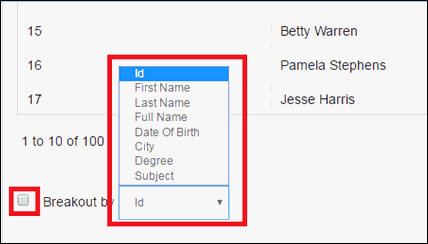
Fields that are displayed in the drop-down list are those that are configured in the Administration menu. For more information about how to configure fields, see Configuring Fields for Breakouts.
If the selected domain has sub-domains added in the Administration menu, then the last item in the drop-down list will be Subject. For more information about how to configure sub-domain fields, see Configuring Fields for Breakouts.
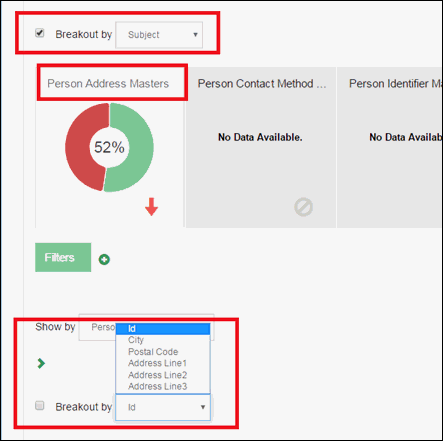
Each tab represents a separate sub-domain when a breakout by subject is selected, as shown in the following image.
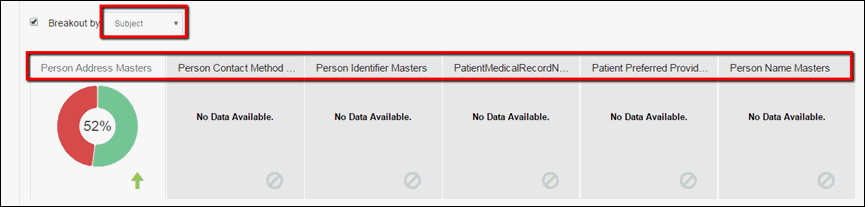
Each sub-domain (subject) tab contains data that is available for that domain (for example, Person Address Masters table is the sub-domain of both Patient Masters and Provider Masters domains, but different information will be displayed in the grid for each of them).
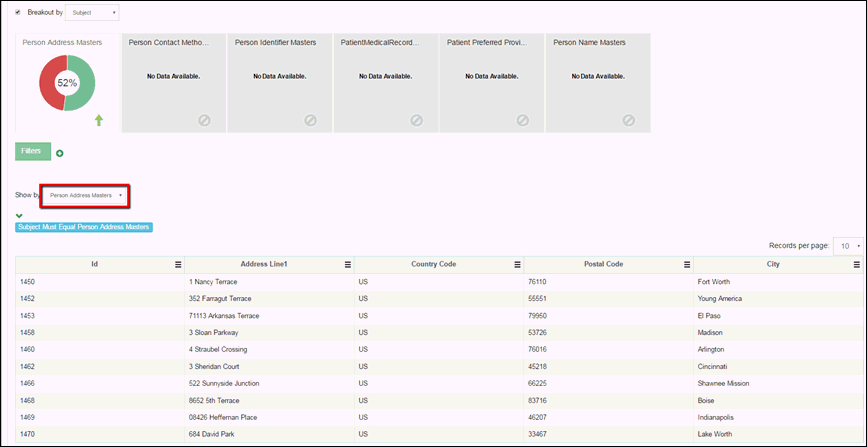
The following image shows fields from the Person Address Masters table displayed by default. All fields in the grid are configurable. For more information on configuring grids, see Configuring Fields for the Grid.
There are 8 tabs displayed on one page. If there are more than 8 tabs available, then paging is displayed. You can navigate among the pages by using the Next and Previous buttons, as shown in the following image.

Important: Tabs work using a lazy-loading mechanism. If you add a filter, change the Show by, add a breakout, or other criteria on a specific tab, and then you navigate to the next page of tabs, all changes on the previous tab will be lost. When you navigate back to the original tab, the default options will be selected, discarding all changed made on that specific tab.
After a breakout is applied, all the functionality will be dependent and configured for the breakout. For example, if you applied a breakout by Subject (for example, Person Address Masters), then the filters (Show by, Breakout by, and Grid data) will be available for the selected subject, as shown in the following image.
Breakout fields, Show by fields, Grid columns, and Filter fields should be configured for subjects separately. For more information, see Configuring Fields for Filters.