Navigating the General Page Layout
|
Topics: |
All pages in Omni-Patientࡊ Management Central (OPMC) applications use a common layout, as shown in the following image.
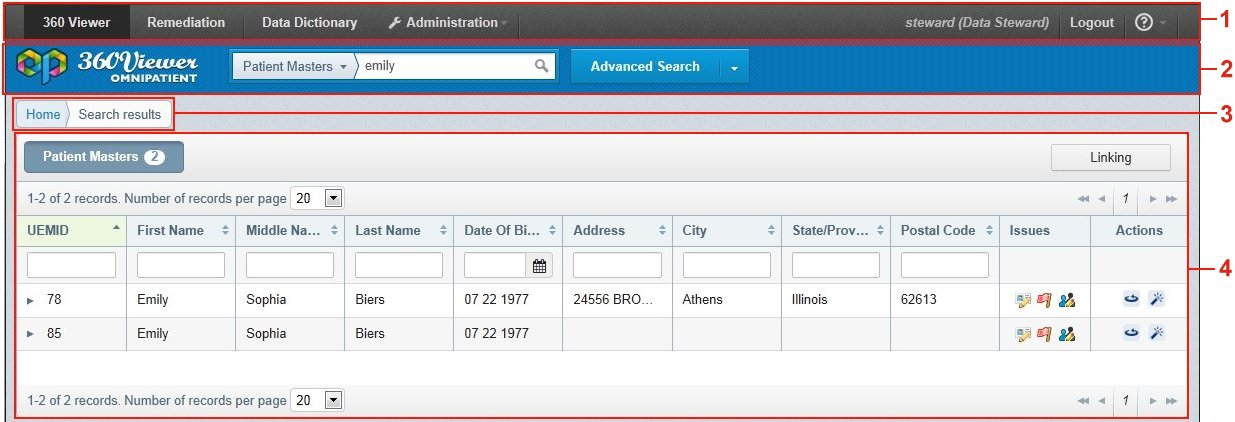
Each page contains the following areas:
- Menu bar
- Search panel
- Breadcrumb trail
- Main page body
Using the Menu Bar
The menu bar displays different items depending on whether the user has or has not yet signed in (authenticated).
Prior to signing in, the menu bar displays the following:
- Login button.
- About button, which is indicated by a question mark icon.

After signing in successfully, the menu bar displays the following items:
- Omni-Patientࡊ Management Central (OPMC) component tabs.
The defined user role determines which specific OPMC tabs are displayed.
- The Administration tab for OPMC when a user has been assigned with the System Administrator role.
- Current user details, including the user ID and corresponding role(s) assigned to the user (in parentheses).
- About button.

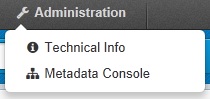
The Administration tab includes a drop-down menu with several options, as shown in the following image.
The About button provides a drop-down menu with the About Omni-Patient option, as shown in the following image.

Clicking About Omni-Patient, displays a dialog box that contains Omni-Patient source and build information, as shown in the following image.
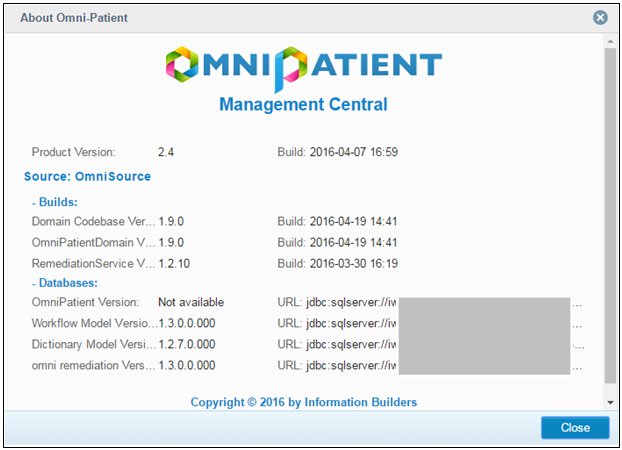
The About Omni-Patient dialog box provides the following information:
- Version number
- Build numbers
- Database locations and names
This information is used to verify that the user is working within the proper Omni-Patient environment and corresponding databases. It is also used for troubleshooting purposes when contacting IBI/iWay Customer Support.
Using the Search Panel
The search panel is divided into separate areas, as shown in the following image.

- Omni-Patient 360 Viewer logo
- Domain drop-down menu
- Simple Search input field
- Advanced Search button and drop-down menu
For more information on using the search panel to perform simple and advanced searches, see BAD XREF HERE "Using the Search Panel.
Using the Breadcrumb Trail
Breadcrumbs allow you to keep track of your navigation within Omni-Patient 360 Viewer, as shown in the following image.

You can click on a breadcrumb item to be redirected to that corresponding page.
Search details are displayed to the right of the breadcrumb trail after performing an Advanced Search, as shown in the following image.

Using the Main Page Body
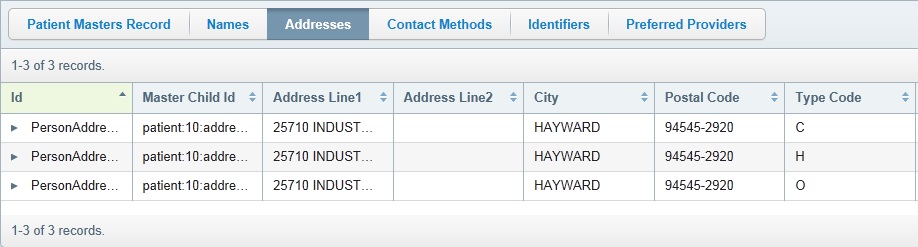
The page body is the main area of each page where you can view, compare data, and perform searches.
For more information on using the various pages in Omni-Patient 360 Viewer, see Available Pages in Omni-Patient 360 Viewer.