Verifying an Active Omni-Patient Server
|
How to: |
This section describes how to verify an Omni-Patient application by:
- Verifying that the Omni-Patient Server is active.
- Verifying that the Omni-Patient MDC Servers (MDC Cleansing, Matching, and Merging) are active.
Procedure: How to Verify Active Omni-Patient Servers
To verify that the Omni-Patient Server is active:
- Start iWay Service Manager (iSM) and open the
iSM Administration Console by entering the following URL in your
web browser:
http://hostname:9999/ism
where:
- hostname
-
Is the location where Omni-Patient was installed.
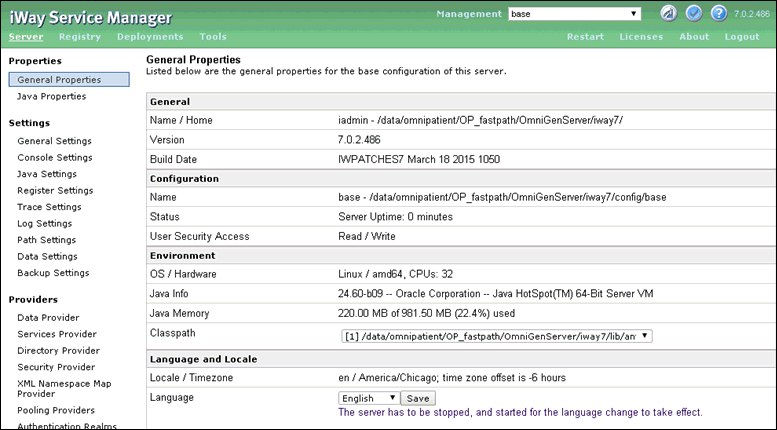
The iSM Administration Console opens, as shown in the following image.
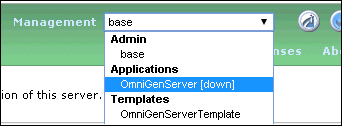
- From the Management drop-down list, select OmniGenServer,
as shown in the following image.
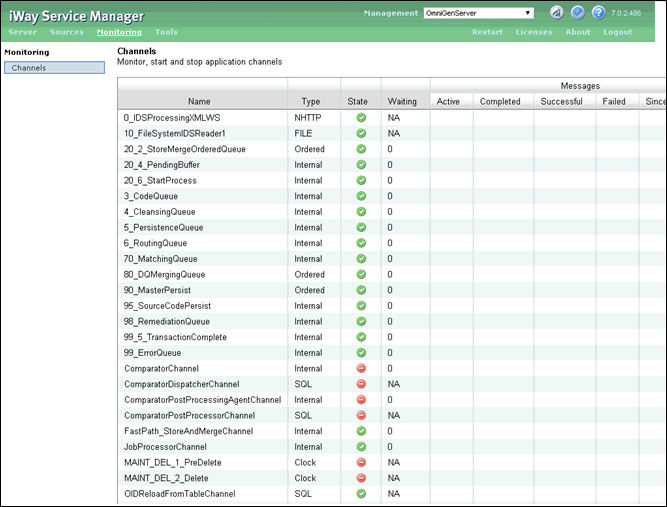
- Click Monitoring to verify that
the Omni-Patient Server is active, as shown in the following image.
Note: The initial start of Omni-Patient loads Omni Codes before becoming active, which may take several minutes.
Procedure: How to Verify Active Omni-Patient MDC Servers (Cleansing, Matching, and Merging)
To verify that the MDC Cleansing Server is active:
- Open the DQS Cleansing Administration Console
by entering the following URL in your web browser:
http://hostname:9502
where:
- hostname
-
Is the server where Omni-Patient was installed.
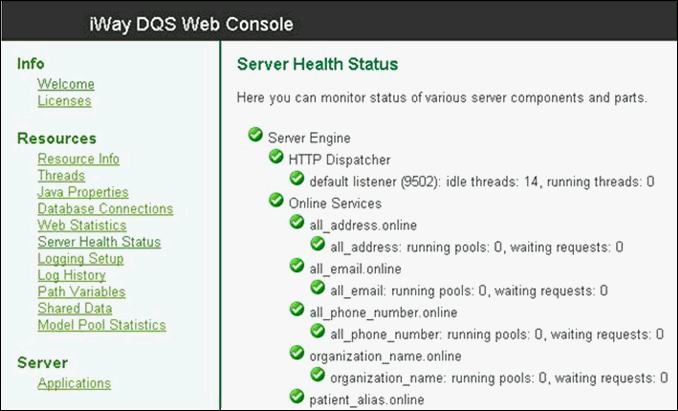
- Click Server Health Status.
The Server Health Status appears on the right pane of the iWay DQS Web Console, as shown in the following image.
- Verify that the MDC Matching Server is active by entering
the following URL in your web browser, and then opening the DQS
Matching Administration Console.
http://hostname:9504
- Click Server Health Status.
The DQS Matching Administration Console opens, showing the Server Health Status, as shown in the following image.
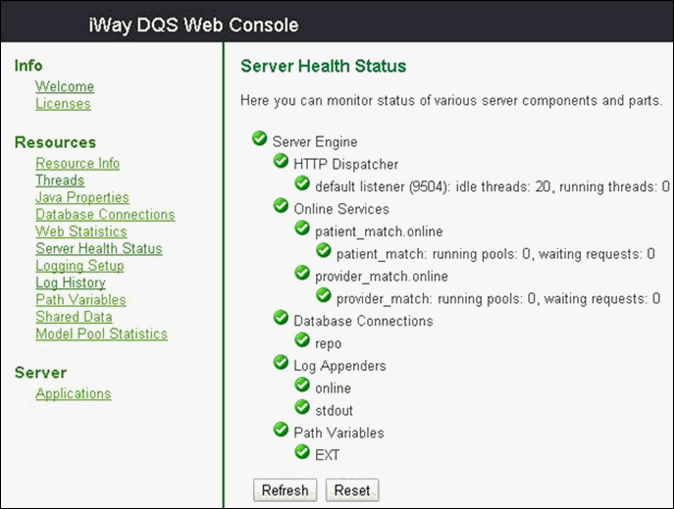
The Server Health Status page provides information on the successful connection to the Omni-Patient database.
- Verify that the MDC Merging Server is active by entering
the following URL in your web browser, and then opening the DQS
Merging Administration Console.
http://hostname:9506
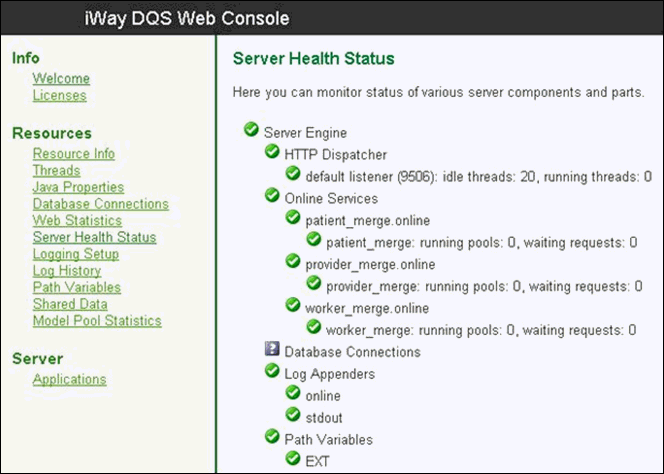
- Click Server Health Status.
The DQS Merging Administration Console opens, showing the Server Health Status, as shown in the following image.
Procedure: How to Verify the Omni-Patient Application
The following steps will verify the Omni-Patient application by copying a sample patient XML document to the File listener for Omni-Patient.
- Navigate
to the following samples directory that was extracted from the Workbench<version>.zip
archive file:
D:\OmniGenServer\samples\patient
- Select the ExamplePatientIDS.xml document
and copy this file to the following directory:
[iway_home]\IDS\patient\in
- Verify that the document has been successfully processed by viewing the iSM and MDC consoles, and then verify that data is in the Omni-Patient database.
- Repeat this procedure for each of the Sample documents and iWay MDC mastering projects.