Administration Views
|
Topics: |
This section describes how to configure and customize various views in Data Quality Monitor (DQM).
DQM Filters View
To specify (include) fields available for filtering in DQM:
- Navigate to Administration.
- Select an appropriate domain table (for example, Patient Masters).
- Click Edit Table, as shown in the following
image.
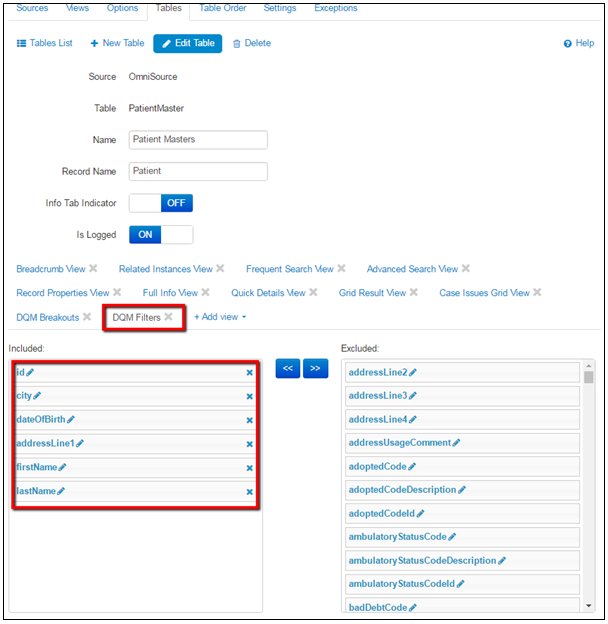
- Click DQM Filters.
- Select and add the required fields from the Excluded list to the Included list.
- Click Update.
After you update the table, navigate back to DQM and check whether the list of fields available for filtering are updated, as shown in the following image.
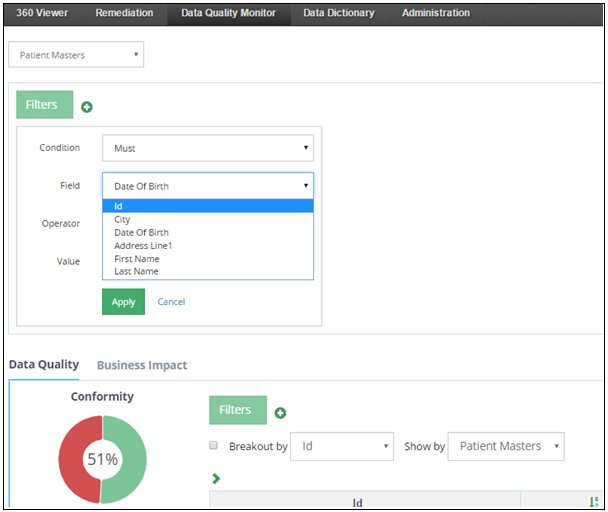
Note: These fields are defined for global and local filters (Conformity and Validity tabs).
DQM Breakouts View
|
Topics: |
This section describes how to configure and customize the Breakouts view in DQM.
Configuring Breakout By Drop-down Fields
To specify (include) fields for the Breakout by drop-down in DQM:
- Navigate to Administration.
- Select an appropriate domain table (for example, Patient Masters).
- Click Edit Table, as shown in the following
image.
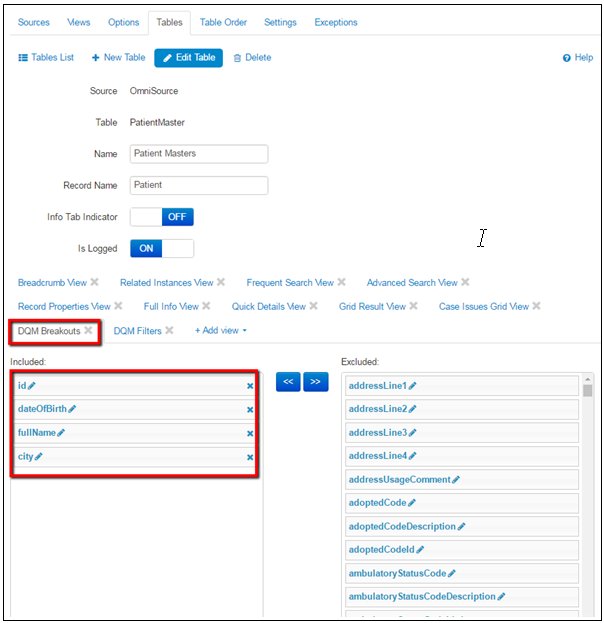
- Select and add the required fields from the Excluded list to the Included list.
- Click Update.
After you update the table, navigate back to DQM and check whether the list of fields available for the Breakout by drop-down are updated, as shown in the following image.
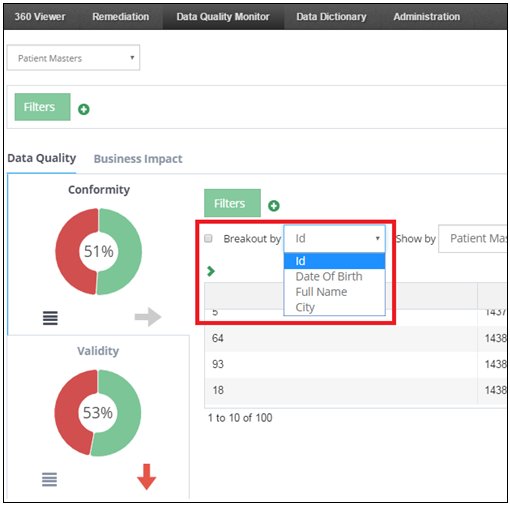
Note: These fields are defined for the Conformity and Validity tabs.
Configuring Show By Drop-down Fields
To specify (include) fields for the Show by drop-down in DQM:
- Navigate to Administration.
- Select an appropriate domain table (for example, Patient Masters).
- Click Edit Table, as shown in the following
image.
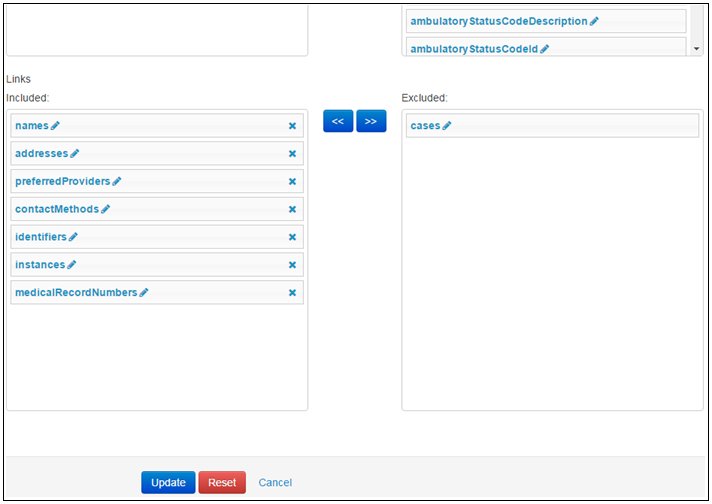
- Select and add the required fields from the Excluded list to the Included list (Links section).
- Click Update.
After you update the table, navigate back to DQM and check whether the list of fields available for the Show by drop-down are updated, as shown in the following image.
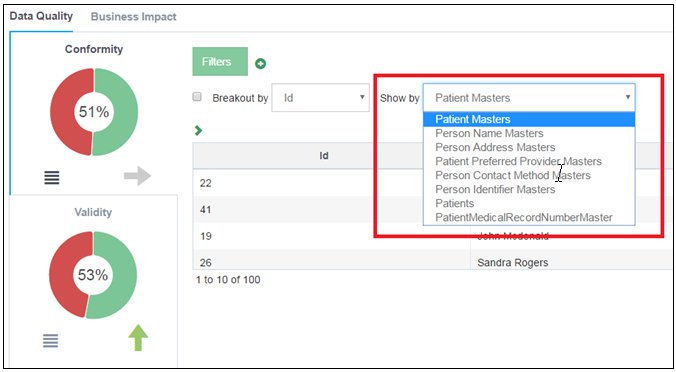
Notice that all sub-domain tables that were added to the Links Included section are displayed in the drop-down, as well as the Domain table. If required, data from those sub-domains may now be displayed in the grid.
DQM Grid View
To specify (include) columns available for search in DQM:
- Navigate to Administration.
- Select an appropriate domain table (for example, Patient Masters).
- Click Edit Table, as shown in the following
image.
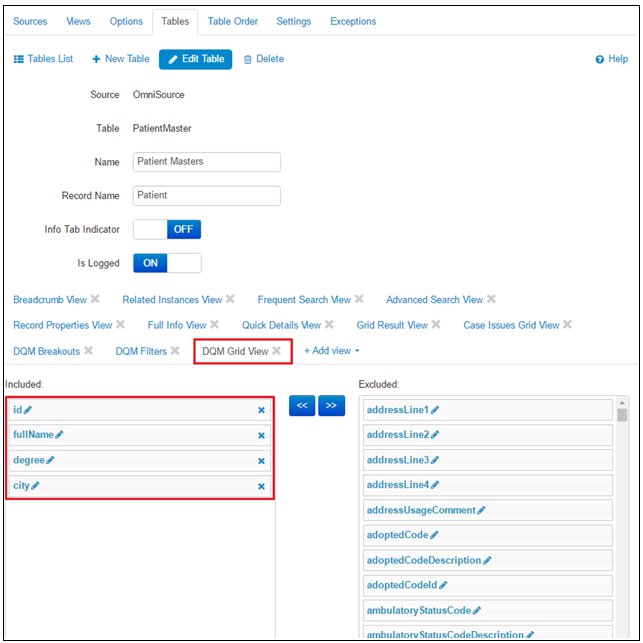
- Select and add the required columns from the Excluded list to the Included list.
- Click Update.
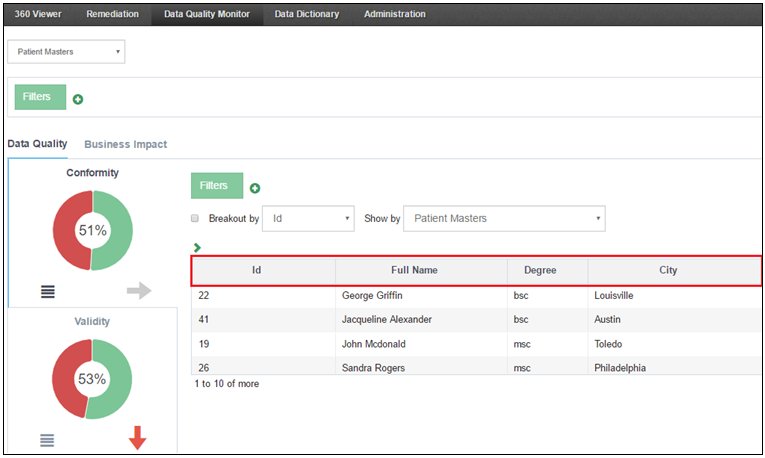
After you update the table, navigate back to DQM and check whether the list of columns available for searching are updated, as shown in the following image.