Using the Wizard to Develop a New Agent
To use the wizard:
- Prepare a Java Project and then add the needed external
libraries to the project.
A simple technique is to start with the .jar files in the lib directory under [iwayhome].
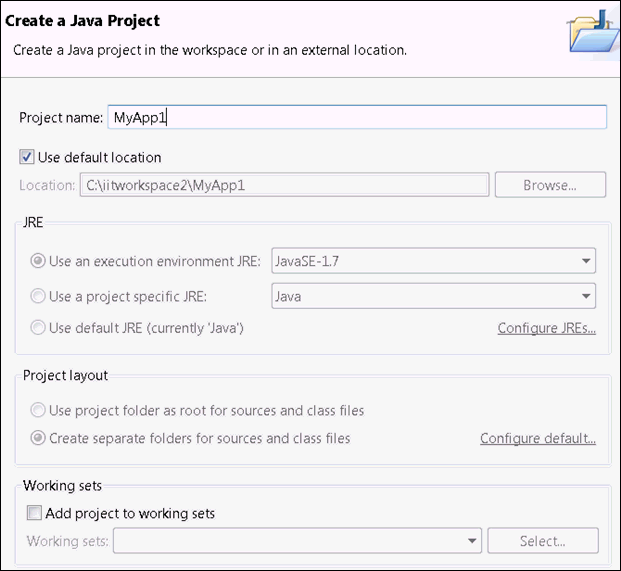
The project name will be reflected in the generated code. It is recommended that the project name be used later in the extension name to simplify maintenance. All generated components will be added to the project. The following image has a project name called MyApp1.
The following table lists and describes the components.
Component
Use
Upgraded For Subsequent Changes
MANIFEST.MF
Points to a registration class, one per .jar file.
No
RegisterMyApp1.java
Identifies components to iSM, one per .jar file.
Yes
MyApp1_en_US.properties
Language translation, one per .jar file.
Yes
agents
Application logic, as many as needed.
No
other components (future releases)
Application logic, as many as needed.
No
Each component offers a specific wizard appropriate to the component.
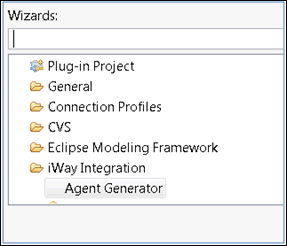
- To select a wizard, right-click the Java project and select New,
click Other, expand iWay Integration,
and then click Agent Generator, as shown
in the following image.
The following image shows the MyApp1 example used for file operations and is therfore placed in the file category. This helps iIT locate the agent service when it is used in a flow.
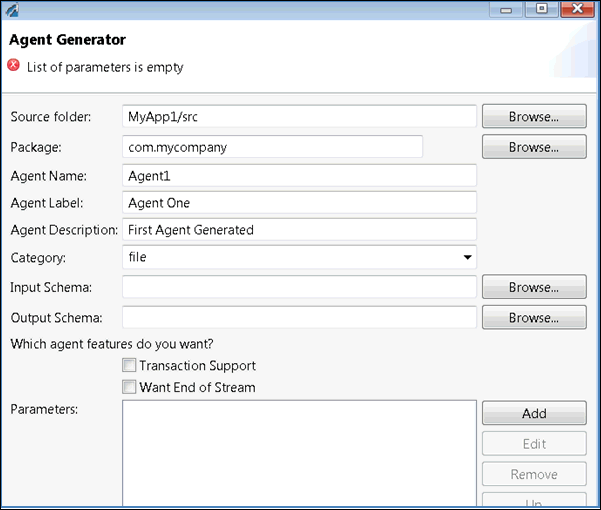
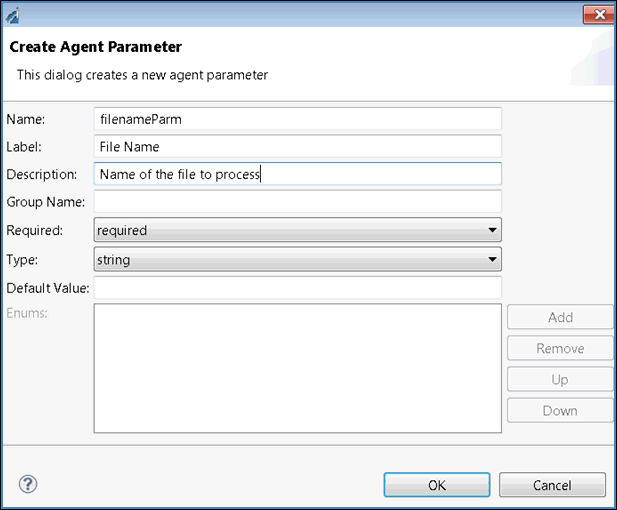
You can add parameters to the agent by clicking Add.
The following image shows how the structure of the project appears once generation is complete.
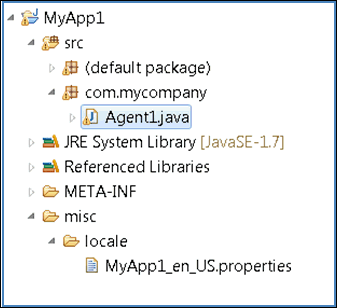
The language and registration components are updated as you add additional agents.
- Add the logic to the generated agent template to do the work
required.
After completion, you can then generate an extension using the Export wizard of Eclipse, as shown in the following image.
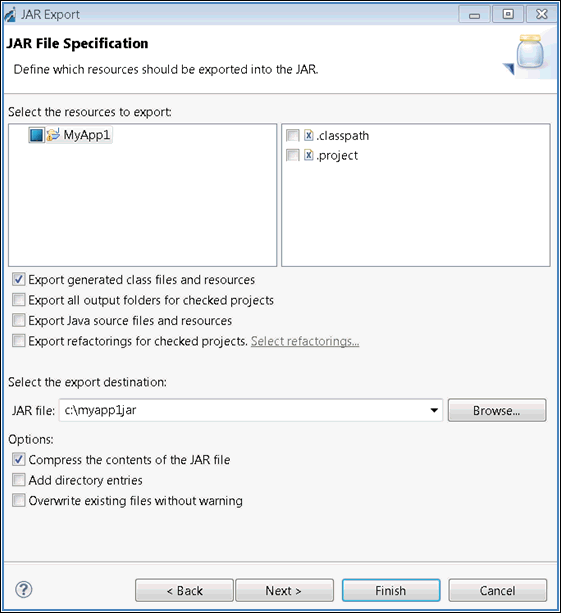
Ensure that the misc directory is selected under the project to include the language file in the .jar file.
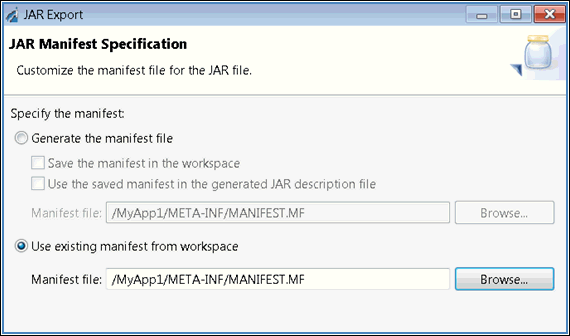
- Set the proper manifest as shown in the following image.